The Public Service Commission has recently implemented is e-recruitment website i.e Online Application is now possible. For many years now, the application form 7 is being used, which can be downloaded online here.
However, with new Internet technology, if you are looking to fill Form 7 online, now you can do it online by following the instructions below:
General information for Online PSC Application
All applications for positions at the Public Service Commission (PSC) and Disciplined Forces Service Commission (DFSC) must be submitted through the e-Recruitment portal on the http://psc.govmu.org page.
Please note that the PSC and DFSC only accept applications from citizens of Mauritius.
Candidates should ensure that they complete and submit their application online well in advance of the closing date in order to meet the deadline. Candidates bear full responsibility for the timely submission of their application. The PSC and DFSC cannot be held liable for any delays that are unrelated to its own systems.
Candidates are advised that if they apply for a position and subsequently make changes to their profile, these changes will be reflected in the submitted application. Please bear this in mind if you are considering amending your application for the purpose of applying for another post.
Upon successful submission of your application, you will receive an automatic acknowledgement of receipt. If you have not received an acknowledgement of receipt you have not submitted your application correctly, and the PSC and DFSC will not consider you as a candidate.
If you have any questions regarding your application, please send an e-mail to pscrecruitment@govmu.org and pscpostal@govmu.orgquoting the reference number of the position.
For any other query, please contact the PSC help desk on e-mail addresspdsc@govmu.org, phone number 6709705and fax number 6703417.
If you encounter technical problems, please send an e-mail to Government Online Centre on support@ncb.mu or phone on 454 9955.Support is available Monday to Friday from 08:45 to 16:00.
Before applying for any position, please consider whether your qualifications are commensurate with the competencies stipulated in the vacancy notice.
Indiscriminately applying for vacancies might harm your credibility.
If you have been approached by any persons or companies claiming to be recruiting on behalf of the PSC and DFSC and requesting the payment of a fee, please send an e-mail immediately to pdsc@govmu.organd report the case immediately to the nearest Police Station.
When applying for vacancy, please apply only through our e-Recruitment system (via our websitehttp://psc.govmu.org).
Before you apply online on PSC New eRecruitmentWebsite
Before applying for a position at the PSC and DFSC, we recommend that you read our FAQs, Notes and Instructions for Online Application, How To Apply and Disclaimer Notice.
Searching and applying for a position at the PSC and DFSC
To view list of current vacancies, click on
>>> http://psc.govmu.org <<<
Browser which are supported for online application are:
➢ Firefox
➢ Google chrome
>> To Apply for a post at the PSC & DFSC
a). Go to New PSC website

b). Scroll down to check available vacancies with particulars and click on “Apply any post above”
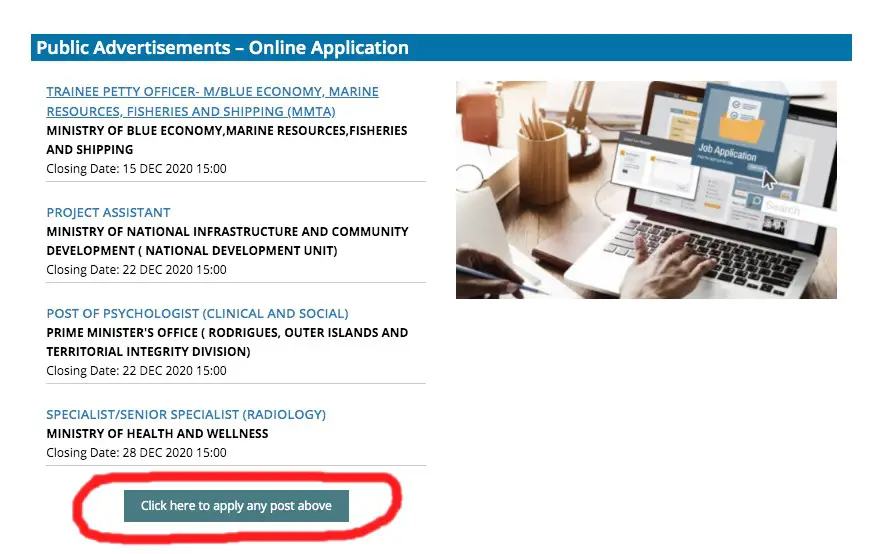
c). You will be redirected to MAUPASS (National Authentication Framework)
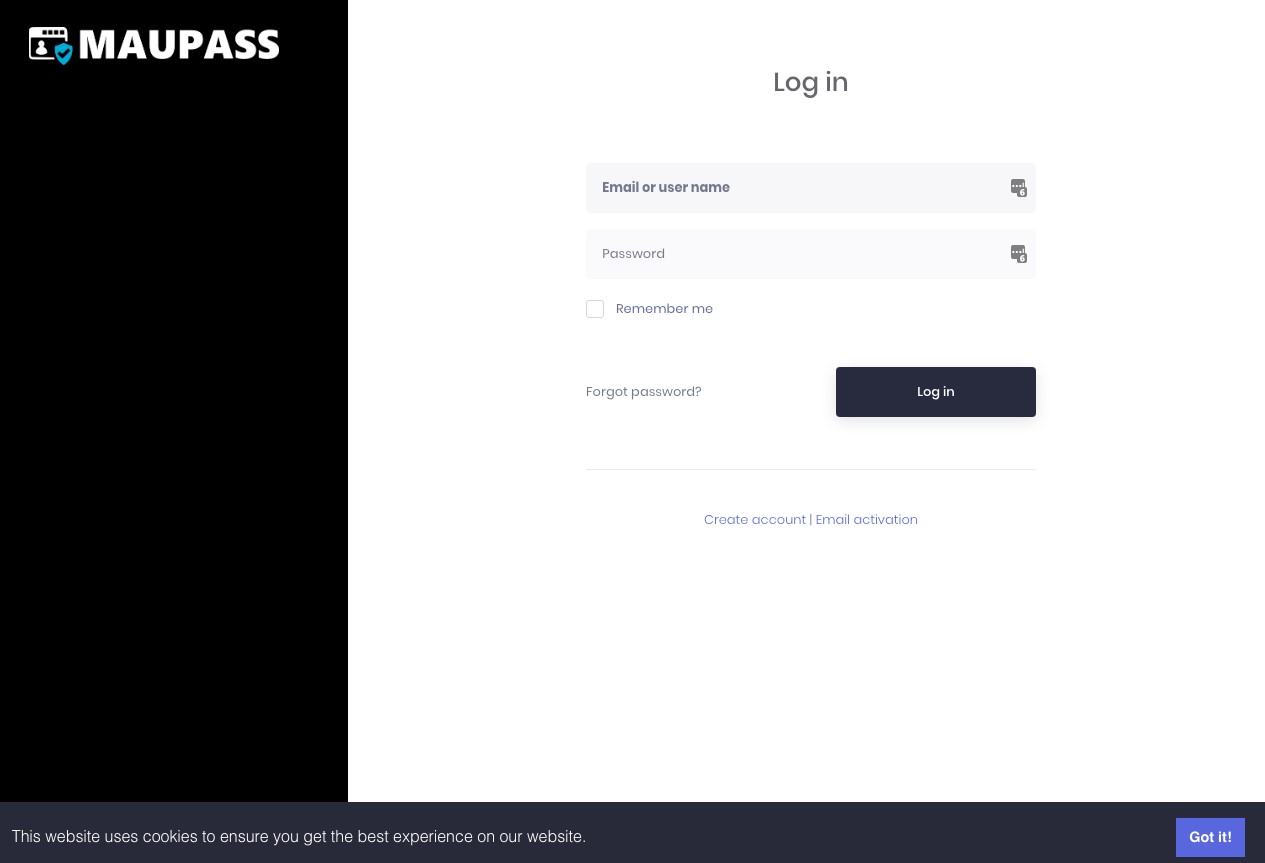
- Enter Email or User name and pass word and click on Login
If you don’t have an account, Register for MauPass
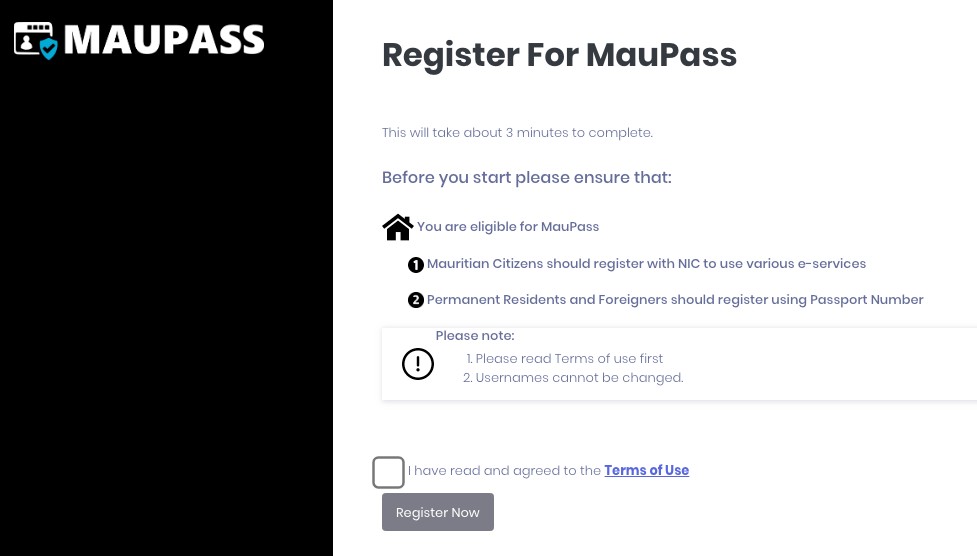
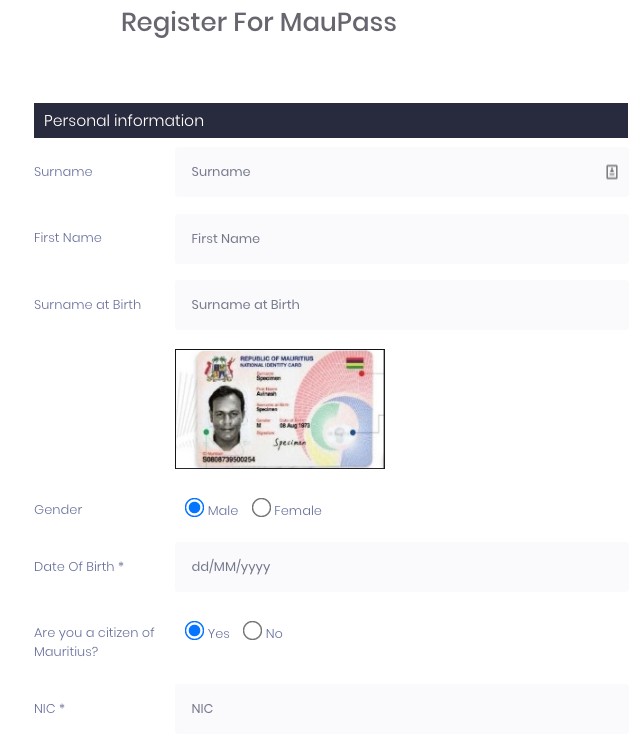
Enter your details in the Registration Page
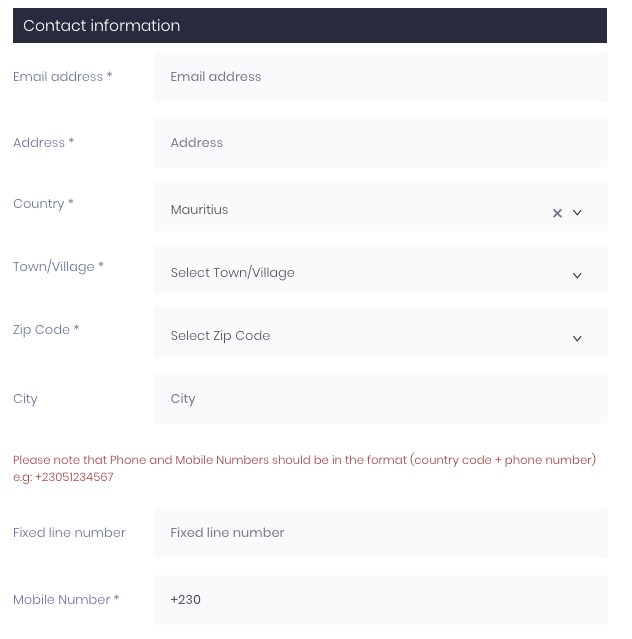
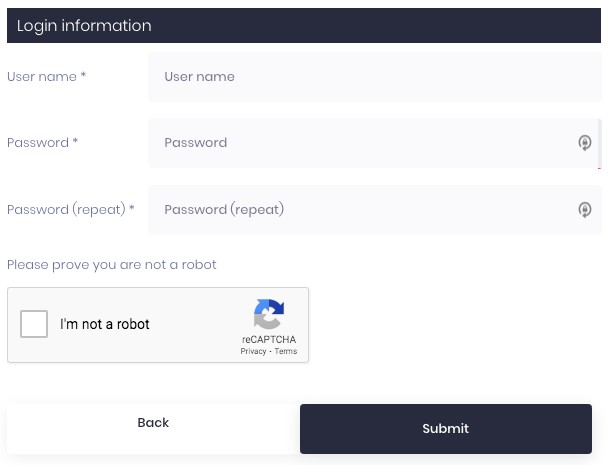
The password must be respecting the following rules:
- Passwords must have at least one digit (‘0’-‘9’).
- Passwords must have at least one lowercase (‘a’-‘z’).
- Passwords must contain at least one of these: ! @ # $ % ? *
- Passwords must have at least one uppercase (‘A’-‘Z’).
- Passwords must be at least 7 characters.
Examples of Secure password include:
z1ab@QXDxx01NeWcxk
9MK2nvDRDi1&WVlv9j
RkpCj5#KU5npswE5Z8
You will receive a confirmation email that you need to check and activate within 6 days.
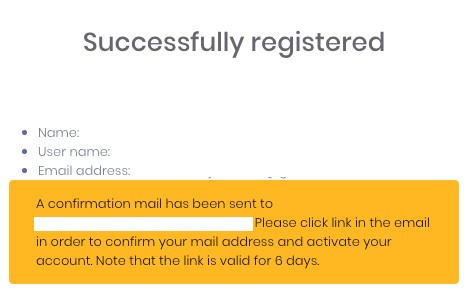
Please check your SPAM folder as this automatic registration email can also fall into your Junk/SPAM folder.

Click on the Verify Button in the Email in order to verify your email address.
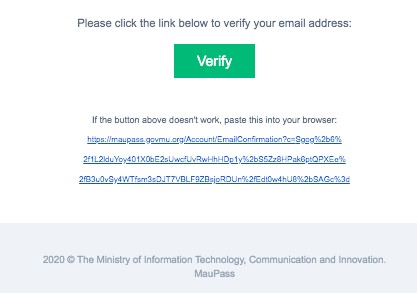
To apply for a specific vacancy, click on the “Apply” button at the bottom of the page.
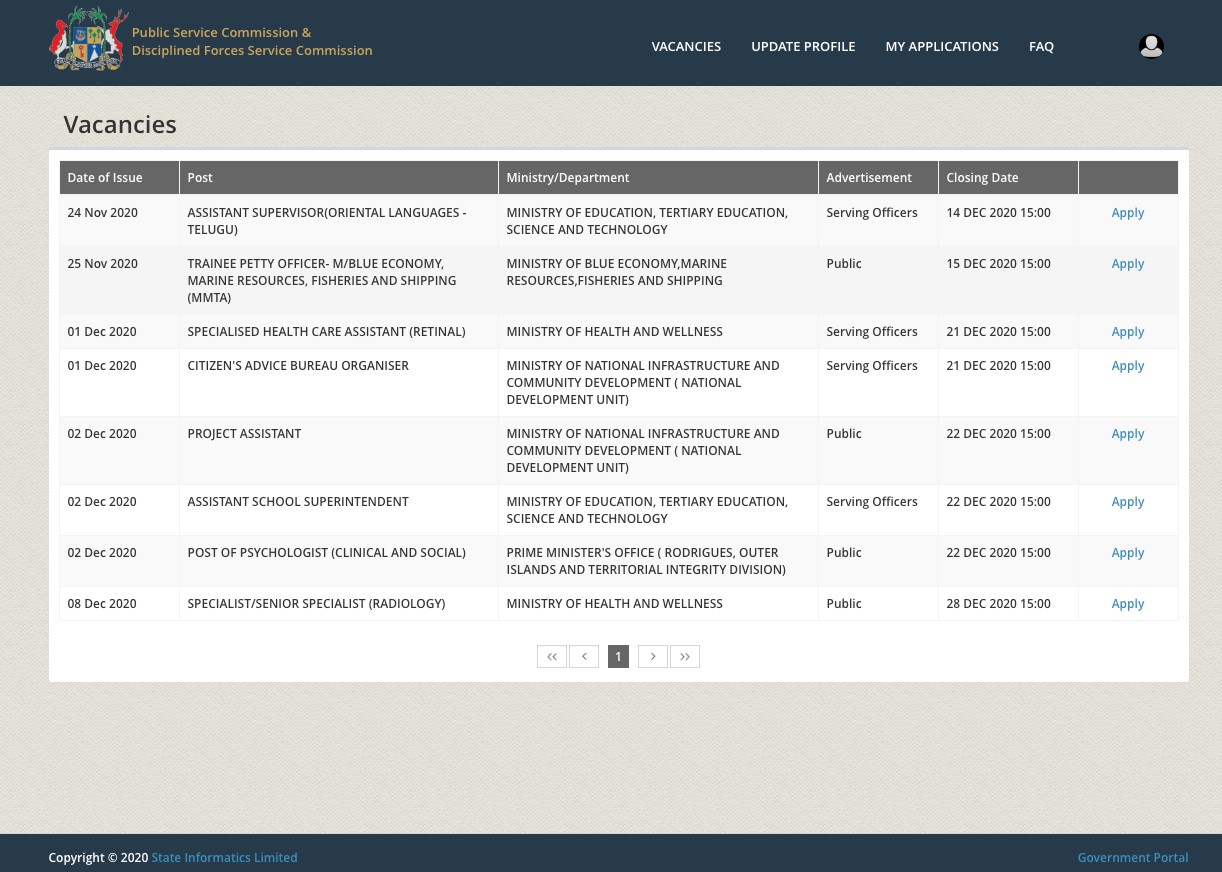
Note:
If you have previously created an applicant account, login using the previously created username and password. You will not be able to create another account using the same e-mail address.
If you do not remember your username and password, you should request a new password on support@ncb.mu. or call on 454 9955 for any issue with login access.
You will need to fill in Your Online Application
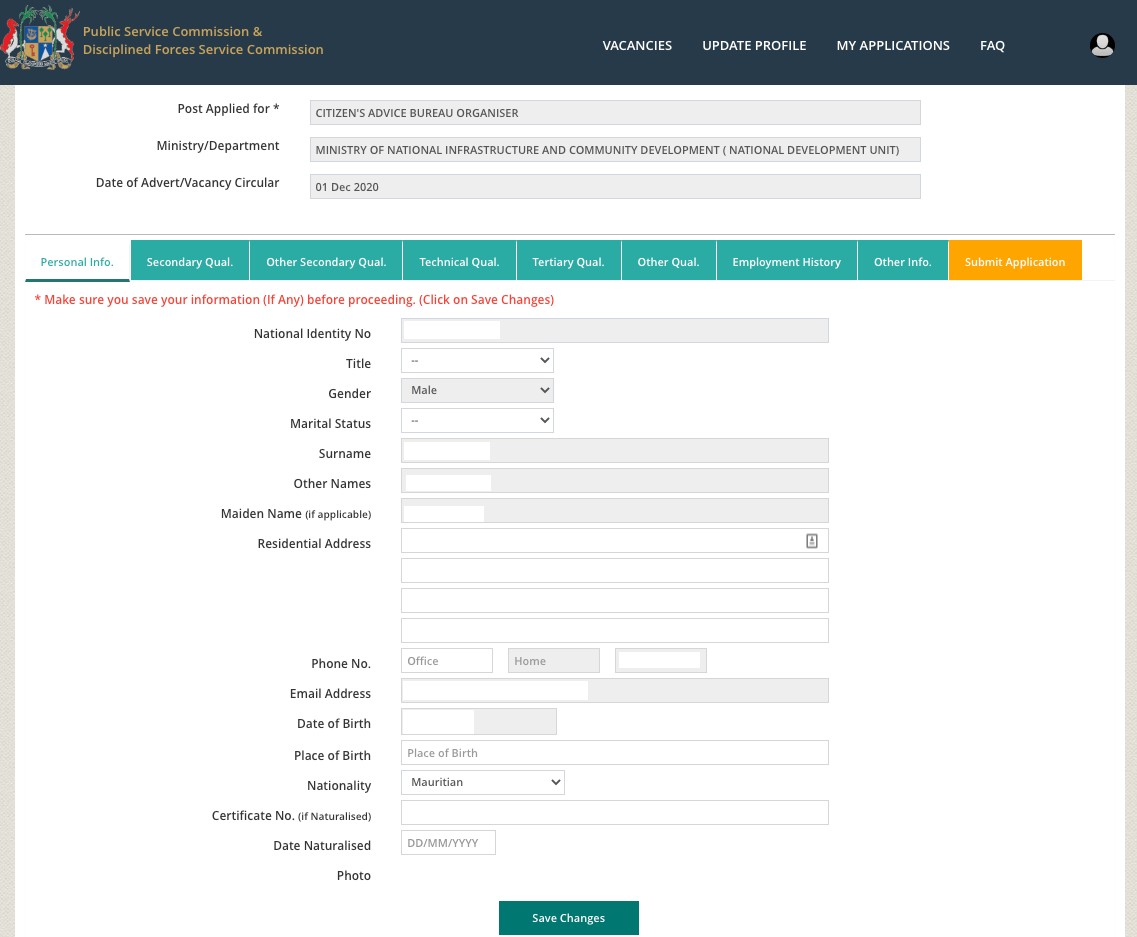
Or use the “Previous” and “Next” buttons provided within the system.
Above row allows you to navigate through the menus
-
Personal Info.
The “Personal Info.” is editable only on the government portal.
Some fields can still be updated such as Title, Phone No., Place of Birth etc..
-
Saving your data
We recommend that you save your data as often as possible. The system will automatically sign you out if you leave it inactive for 15 minutes or more.
Click on Save changes.

This process can be repeated after each update to ensure that all your data is saved.
6. Adding Secondary Qualifications
Click on button to Add Subject and button to Delete Subject.

-
Adding Other Secondary Qualifications
Fill in all the details and click “Add” to insert secondary qualifications.
Subjects can be added or deleted.
Follow same process to add several qualifications.
-
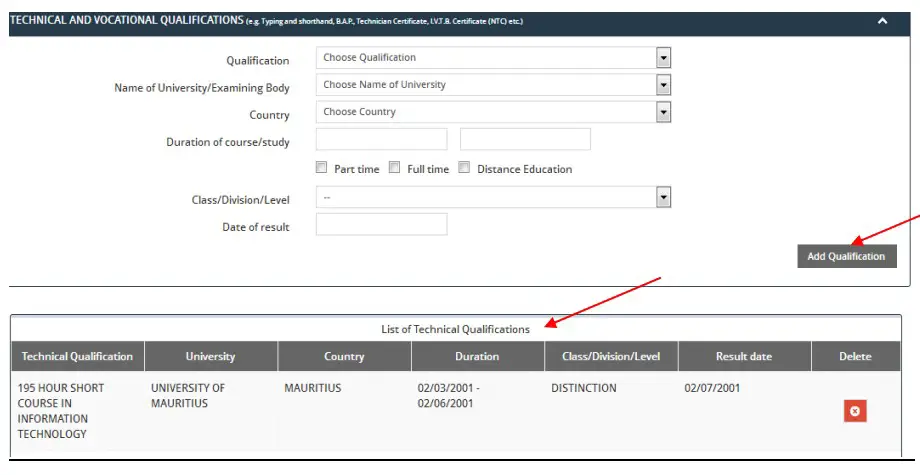
Adding Technical Qualifications
For technical qualifications, after all details have been filled in, click on “Add Qualification”.The qualification will appear in the list of Technical qualifications.
By repeating this process, several qualifications can be added.
-
Adding Tertiary Qualifications
Follow same steps as above (adding technical qualifications) to add tertiary qualifications. Click on Delete to delete qualifications.
-
Other Qualifications
Provide other qualifications (if applicable) as laid down in the advertisement such as Registration Certificate or Driving License or Skills relevant to the post applied for.
When uploading a document please select the relevant attachment type (i.e. academic certificate, other professional certificate or vocational certificate), the formats to be used are: .pdf, .docx,each document should not exceed 2MB.
Click on the Choose button, select the file you are uploading, and click on Open. The file name should appear in the textbox.
11
Click on the Upload button to start the upload process.
To delete an attachment, highlight the relevant document and then click on “Delete”.
12
-
Employment History
Provide information on any present employment in the Government Service or previous employment in the Government Service or employment other than in the Government Service (if applicable).
13
-
Other Info.
Answer these questions before submitting the application.
-
Submit Application
Check that you have answered all questions. If any mandatory questions are left blank, you will not be able to continue with your application.
You can now submit your application.

Application has been successfully saved.
You can update your application several times and repeat the process of Complete Application as long as the closing date has not yet expired.

Note: Consideration will be given to the last application you have submitted.
13. Acknowledgement Receipt
After successful submission of your application, you will receive an acknowledgement in this format:
Dear ………,
15
The Public Service Commission and Disciplined Forces Service Commission has received your application for the post of DEPUTY DIRECTOR CENTRAL INFORMATICS BUREAU M/TECHNOLOGY, COMM & INNOV on 05/06/2017
Your application Reference Number is O_62…8CIB/9/2
Yours faithfully
Recruitment Section
Public Service Commission and
Disciplined Forces Service Commission
7 Louis Pasteur Street
Forest Side.
Tel No. 670 9705
Fax No. 670 3417
E-mail Address: pdsc@govmu.org
To apply for SAME or ANOTHER vacancy, navigate to “VACANCIES”. Click on “Apply”.
-
Updating your profile
To update your profile click on “UPDATE PROFILE” and repeat step 5.
16
Updating your profile does not mean that you have submitted the latest version of your application for a position.
You will receive the following message: “Profile has been updated”.
Repeat Step 12 each time you update your profile to submit the latest version of your application. To view post/s you applied, click on “POST APPLIED”
17
Under the section “POST APPLIED” you will be able to monitor the status of your applications. By clicking on the link of the vacancy, you can apply for the same post again or for another post.
However, if the closing date has passed, you will no longer be able to apply for the position in question.
18
And for help click on “HELP / FAQ”.
You can obtain a printed copy of your document when you click on “Print” button under “POST APPLIED”.
However, if you receive thepop up message as shown below, click on “Options”
19
Select “Edit Pop_up Blocker Options”…
Click on “Allow” for https://psconlineapplication.govmu.org and click on “Save Changes”.
20
Your document is displayed as follows.
-
Sign out
For security reasons, always remember to log off, particularly if you are using a public computer.